Android only
There is an Android build and nothing else. iPhone and iPad cannot join the Node Program, and no "iOS package" exists anywhere.
Download
The Tianqing node app is Android-only and the package is served straight from our own servers. Install it, accept the agreements, sign in, clear the readiness checklist, and you can start running.
Android 7.0+ · no root · served from this site
Package MD5
02998b17073d5dfb7b9426324e0dadb4
Select and copy it to verify the package before you install.
What's new
No release notes were provided for this build.
Before you download
None of this is fine print — each one decides whether the app installs and whether it will run at all.
There is an Android build and nothing else. iPhone and iPad cannot join the Node Program, and no "iOS package" exists anywhere.
The package comes straight from our servers and is never published to third-party app stores. Take it from this page or from the app's own update prompt, and install nothing that merely shares the name.
If the system warns about an unknown source, allow this browser to install apps on the settings screen it opens, then go back to finish. You can switch that permission off again afterwards.
Readiness check
Check the handset against this table before you install. Miss any row and the app will not run, however well it installs.
| Item | Requirement |
|---|---|
| OS version | Android 7.0 or later; iOS is not supported, any brand is fine |
| Root | Not required — a stock, unrooted phone is exactly right |
| Power | Keep it plugged in and turn battery saver off, so the system does not throttle it once the screen is off |
| Network | Wi-Fi or mobile data both work; mobile data is off by default and must be enabled in the app, and any data charges are yours |
| Bandwidth | Ordinary home broadband is enough to start; more upstream raises the ceiling |
| Environment | Emulators, cloud phones and data-centre networks will not work: those exits never enter the dispatch pool |
Earnings depend on the traffic your device actually carries and on live dispatch demand; no minimum is promised. New devices ramp up gradually, so low connection counts in the first days are normal.
Permissions
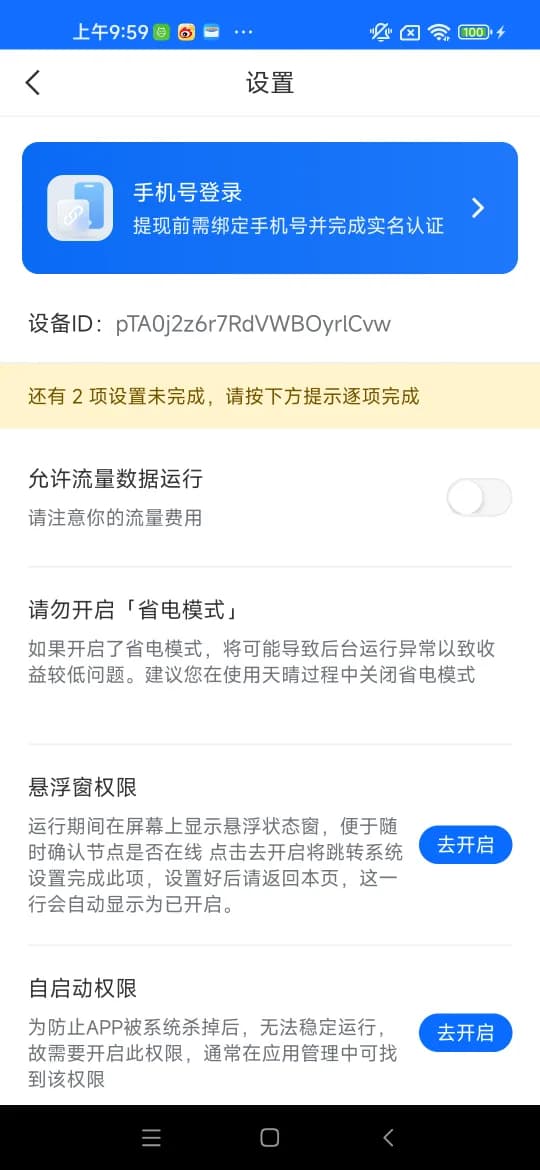
Android reclaims apps that sit in the background. Skip these two settings and the device drops offline soon after the screen goes dark.
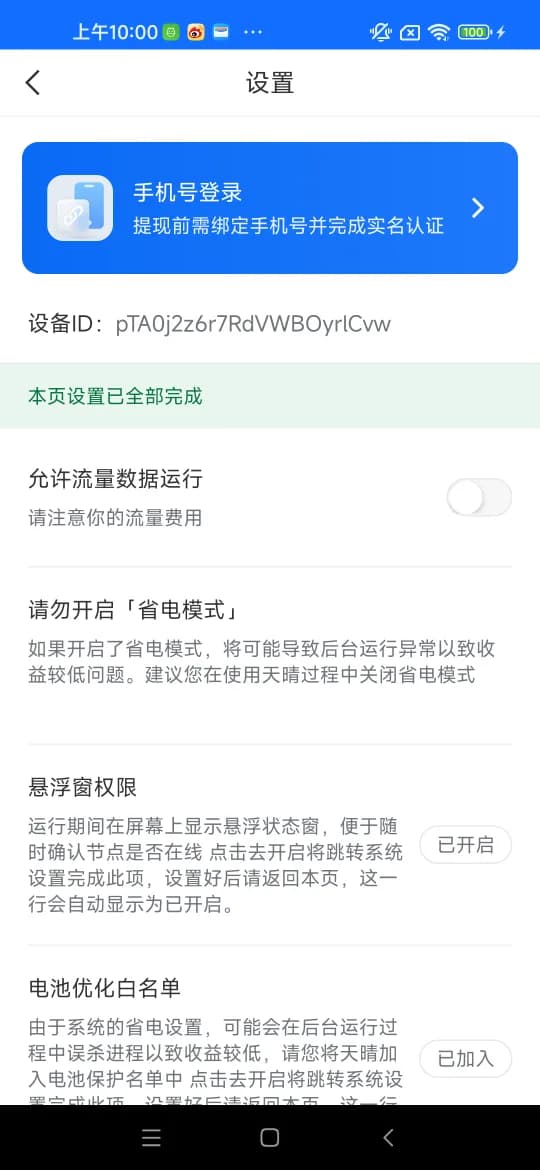
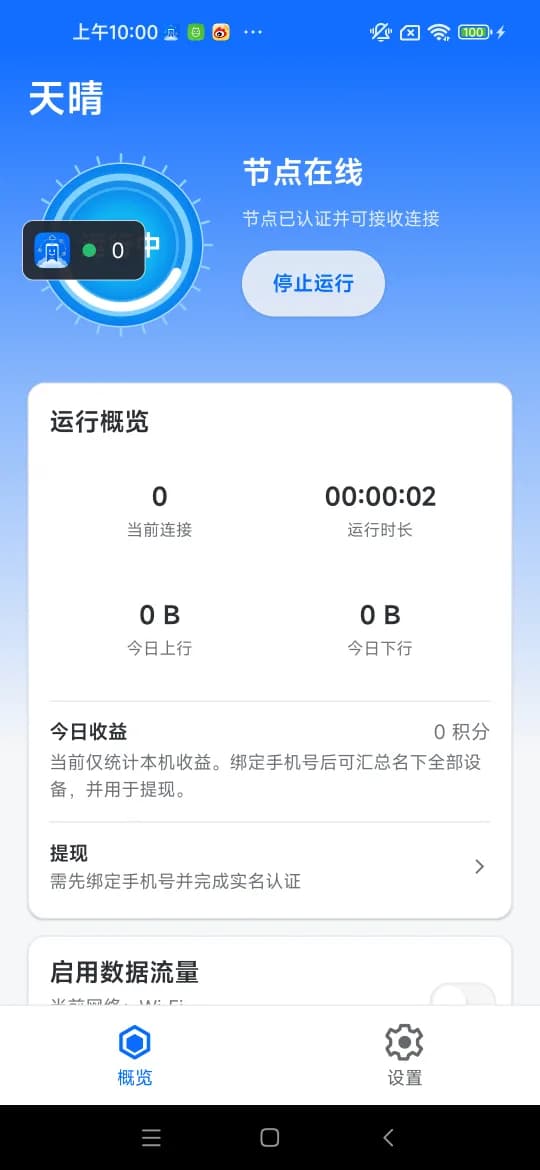
Draws the small status window on screen so you can confirm the device is still running without opening the app.
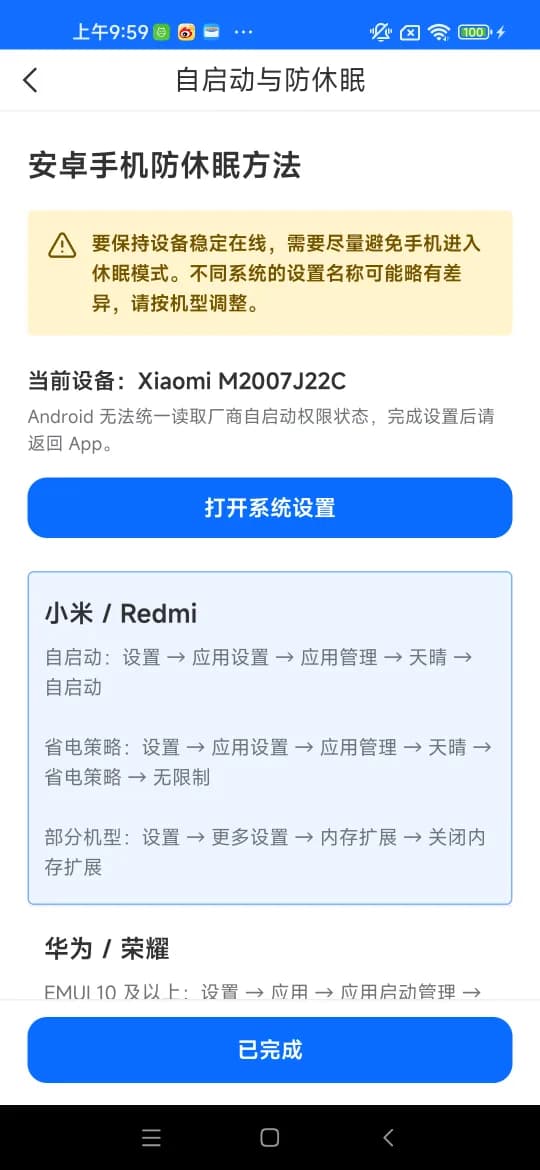
Add Tianqing to the autostart allowlist and set its battery policy to unrestricted, so the system does not kill the process when the screen locks. This is the single most common cause of a device going offline.
| Brand | Where to look |
|---|---|
| Xiaomi / Redmi | Settings → Apps → Manage apps → Tianqing → turn on Autostart, then set the battery saver policy to No restrictions on the same screen |
| Huawei / Honor | Settings → Apps → App launch → Tianqing → turn off Manage automatically, then allow auto-launch, secondary launch and background activity by hand |
| Other brands | The path is broadly the same: search system settings for autostart, battery optimisation or background activity |
While any requirement is unmet the Start button stays inert, and a red line at the bottom of the screen tells you how many items are still outstanding. Clear them one by one and the button lights up.
Four steps
Work through them in order — a few minutes end to end. Screenshots for every step live in the illustrated guide.
Grab the package from this page and follow the system prompts; if an unknown-source warning appears, allow this browser to install apps and return.
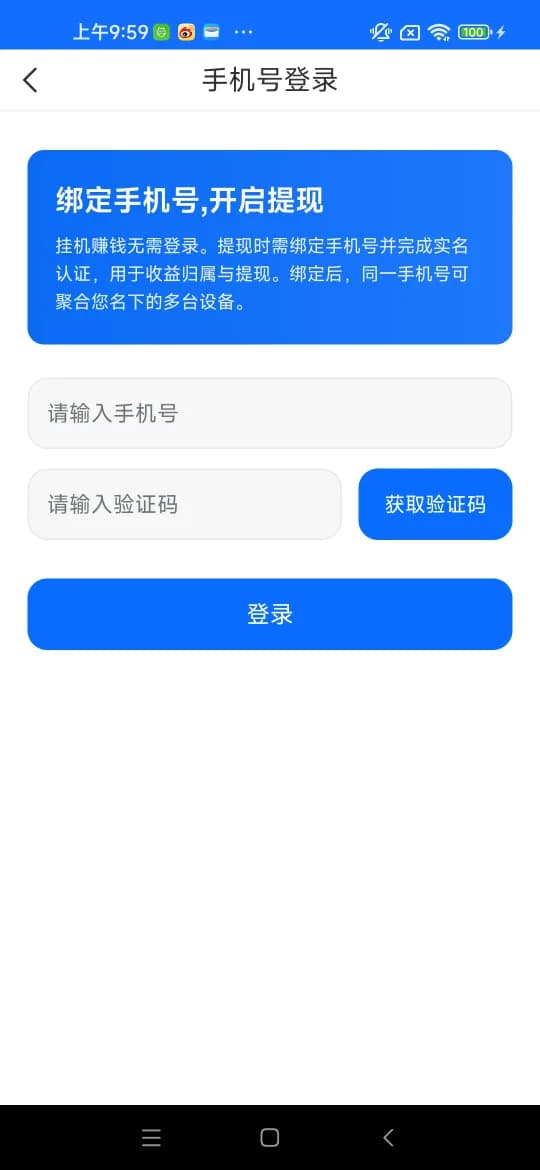
On first launch, accept the user agreement, privacy policy and network exit authorisation, then sign in with your phone number.
Work down the list — overlay, autostart, battery optimisation, network and power — until every item is ticked.
Tap Start; the status window appearing means the device is in. Stop whenever you like — there is no need to uninstall.
Earnings settle on the traffic your device actually carries, never on hours spent online; the current points conversion rate is the one shown on the withdrawal screen in the app.
Versions and updates
The app checks with the server on launch and prompts you in place when a newer build exists. You can also come back to this page for the latest package at any time.
This page is the short version. Every step in real screenshots, plus the earnings rules and the withdrawal flow, are covered in full in the guide.