Points per traffic: 1 MB = 10 points
Traffic the device actually carries is metered in MB at 10 points per MB. Points settle in hourly windows; "Today's earnings" on the overview is this device's running total for the day.
Product guide
Turn a spare Android phone into an exit node. This page walks through installation, the readiness checklist, starting the node, and withdrawing earnings — with real-device screenshots at every step.
Written for first-time users. Every step shows the exact app screen; if your device is already running, jump straight to Troubleshooting.
Heads-up: scheduling ramps up over the first few days after a device comes online. Low connection counts and earnings at the start are normal — keep the device online.
One or more Android phones, no root required. Check the device against this table first.
| Item | Requirement |
|---|---|
| OS | Android 7.0 or newer (iOS not supported) |
| Brand | Any; Xiaomi / Huawei skins need extra background permissions, see section 3 |
| Network | Wi-Fi or mobile data; mobile data is off by default and must be enabled in the app |
| Power | Keep it plugged in and turn off battery saver |
| Bandwidth | More upstream = higher ceiling; home broadband is fine to start |
One account can bind many devices and earnings roll up to the phone number, so a multi-device setup only needs one account.
The rules up front, so every number you see later makes sense.
Traffic the device actually carries is metered in MB at 10 points per MB. Points settle in hourly windows; "Today's earnings" on the overview is this device's running total for the day.
Traffic in that two-hour window earns double — 20 points per MB. Keeping the device online and on a stable network during those hours pays off most.
Scheduling assigns traffic per exit IP. Phones sharing the same broadband line or SIM share that IP's quota, and the total is divided evenly among them rather than multiplied. To scale up, use separate lines or separate SIMs, not more phones on one network.
The points-to-CNY rate and withdrawal threshold are whatever the app's withdraw page shows at the time; rule changes are announced in-app.
The APK is served directly from this site — no third-party app store.
Open this page in the phone's browser and tap the button above to download the APK (about 20 MB — Wi-Fi recommended).
Tap the downloaded file to install. If the system warns about unknown sources, allow this browser to install apps on the settings page it opens, then go back.
Find the Tianqing icon on the home screen and open it.
From first launch to online takes three steps: accept the terms, clear the readiness checklist, tap Start.
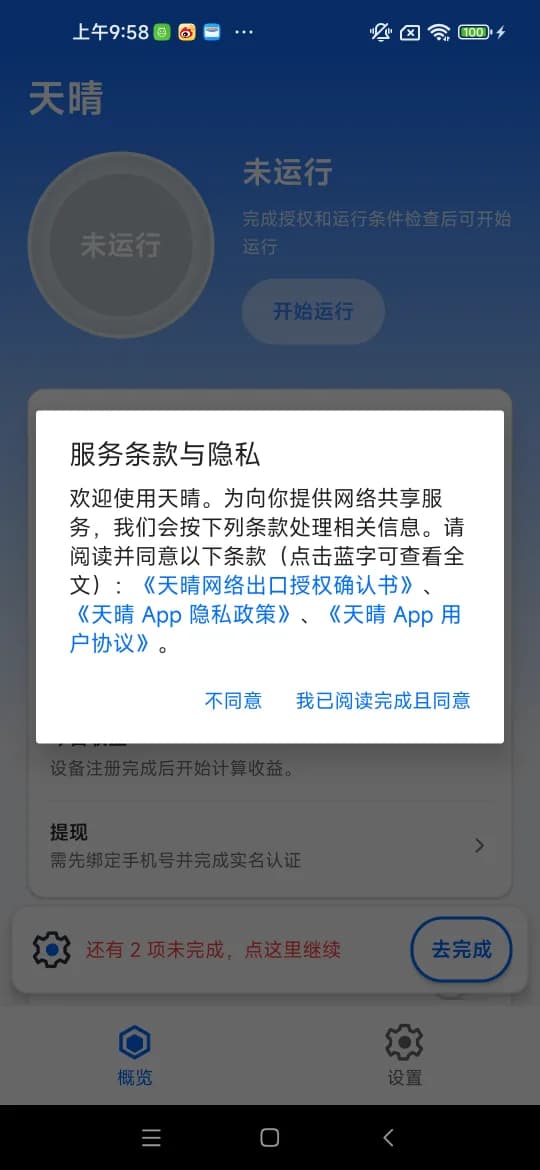
On first launch the app shows the exit authorization, privacy policy and user agreement; tap the blue links to read the full text.
Tap the agree button to reach the main screen. Declining exits the app.
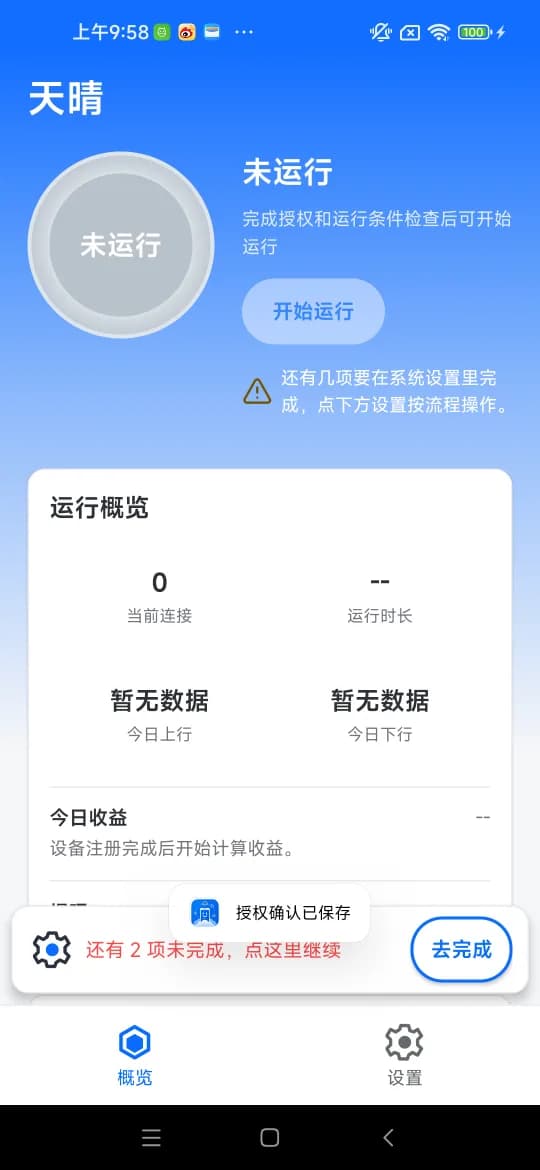
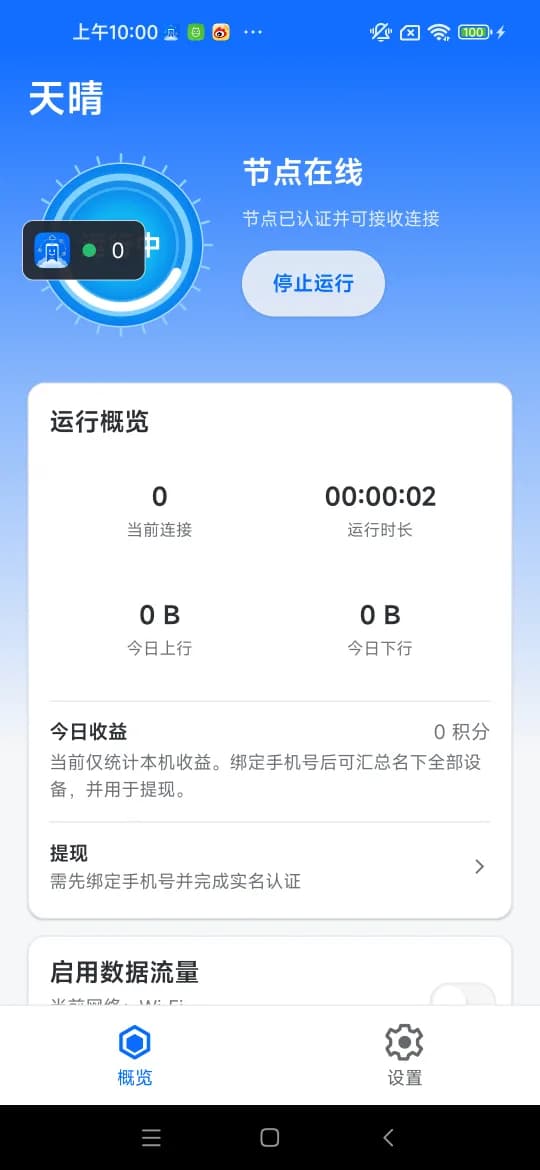
The ring at the top shows node status with the Start button beside it. The Overview card lists current connections, uptime, today's upload/download and today's earnings.
A red "N items left" line at the bottom means the readiness checklist isn't done and the node can't start yet — tap it to continue.
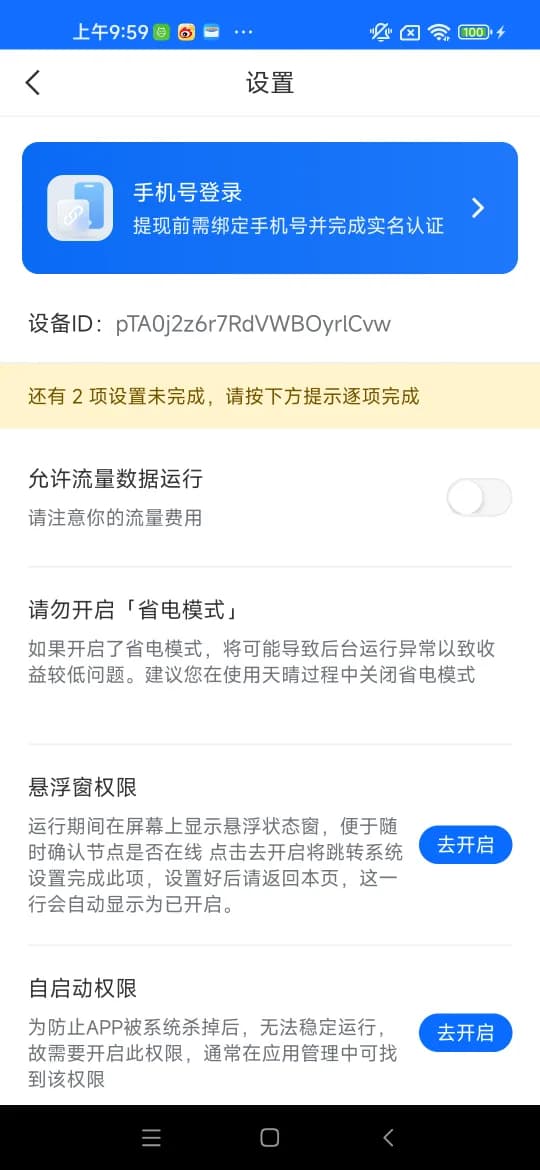
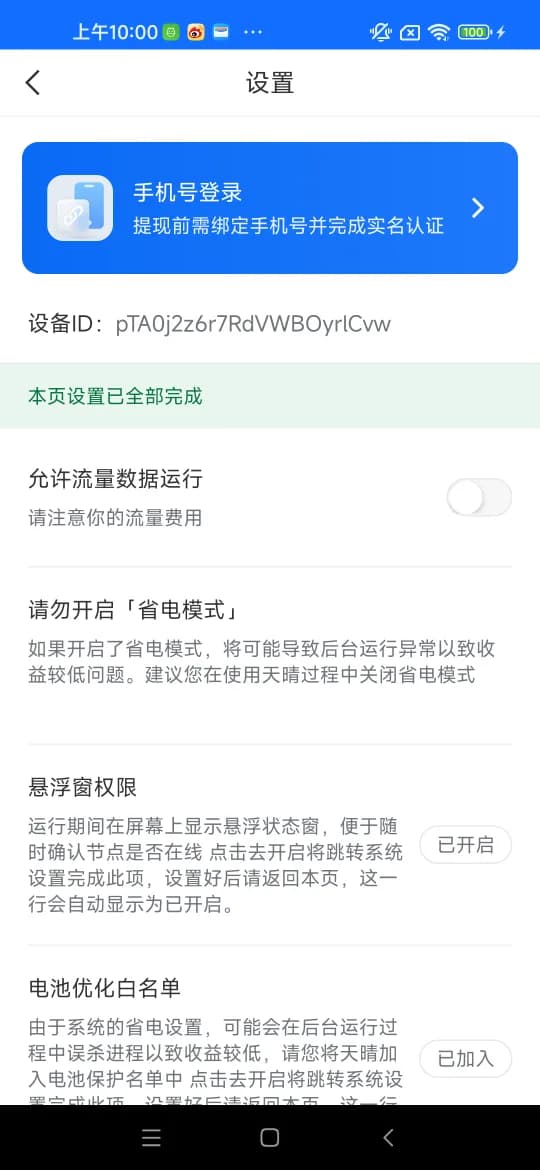
The settings page lists what's still missing on this phone; once everything is done the banner reads "all settings complete". The items:
• Allow mobile data: off by default (Wi-Fi only). Turning it on consumes mobile data — watch your plan.
• Don't enable battery saver: it throttles background work, causing drop-offs and low earnings.
• Overlay permission: shows a small status window on screen while running. Tap Enable, allow it in system settings, come back.
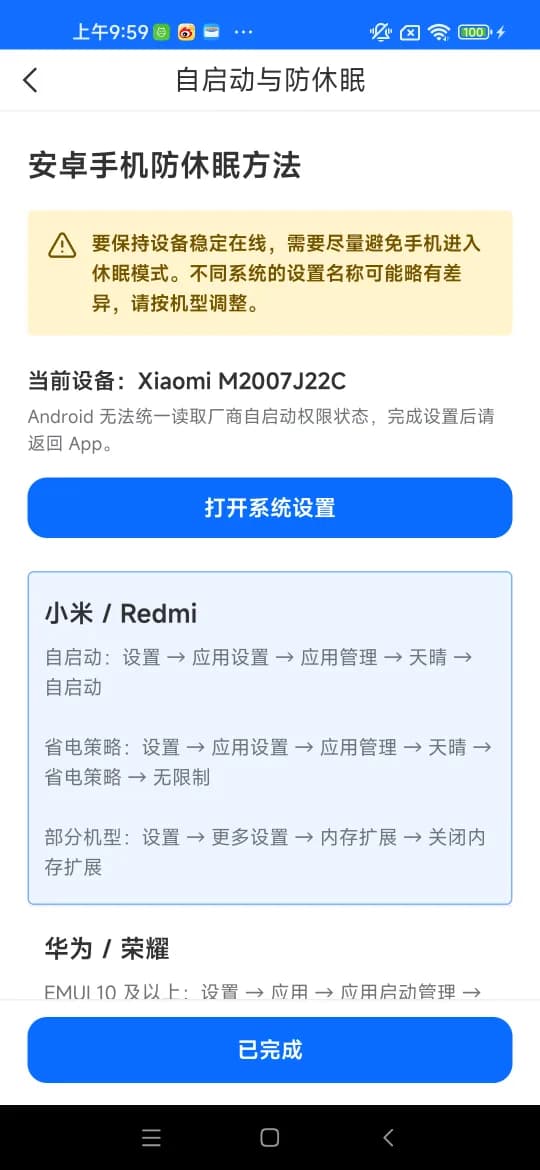
• Auto-start / battery optimization allowlist: stops the system from killing the app. Tap Enable to see the exact path for your phone model.
Xiaomi / Redmi: Settings → Apps → Manage apps → Tianqing → enable Autostart, set Battery saver to "No restrictions". Huawei / Honor: Settings → Apps → App launch → Tianqing → turn off auto-manage, allow auto-launch and background activity.
Back on the overview, tap Start. When the ring reads "Node online — authenticated and accepting connections", the device has joined the pool.
Zero current connections right after going online is normal; the scheduler hands out connections on demand. Once the uptime counter is running you can set the phone aside.
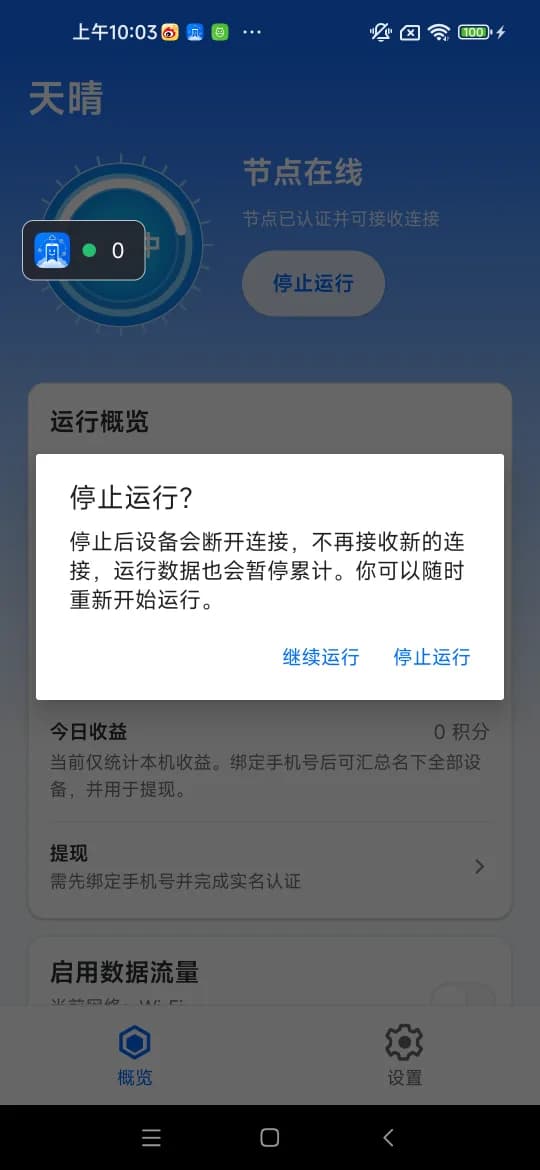
Tapping Stop asks for confirmation: the device disconnects, stops accepting new connections and pauses its counters. You can restart at any time.
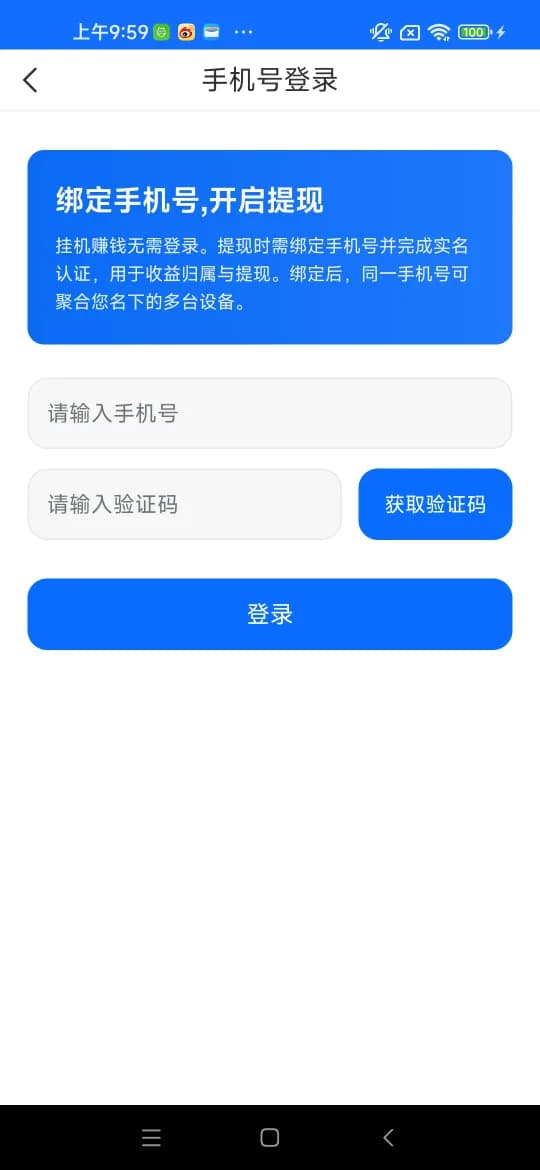
Running doesn't require an account, but earnings settle per account — to withdraw, the device must be bound to a phone number first.
Tap "Phone login" at the top of the settings page and enter the number plus the SMS code. All devices under the same number then roll up to one account.
Before binding, the overview only counts this device; afterwards it shows the total across all your devices.
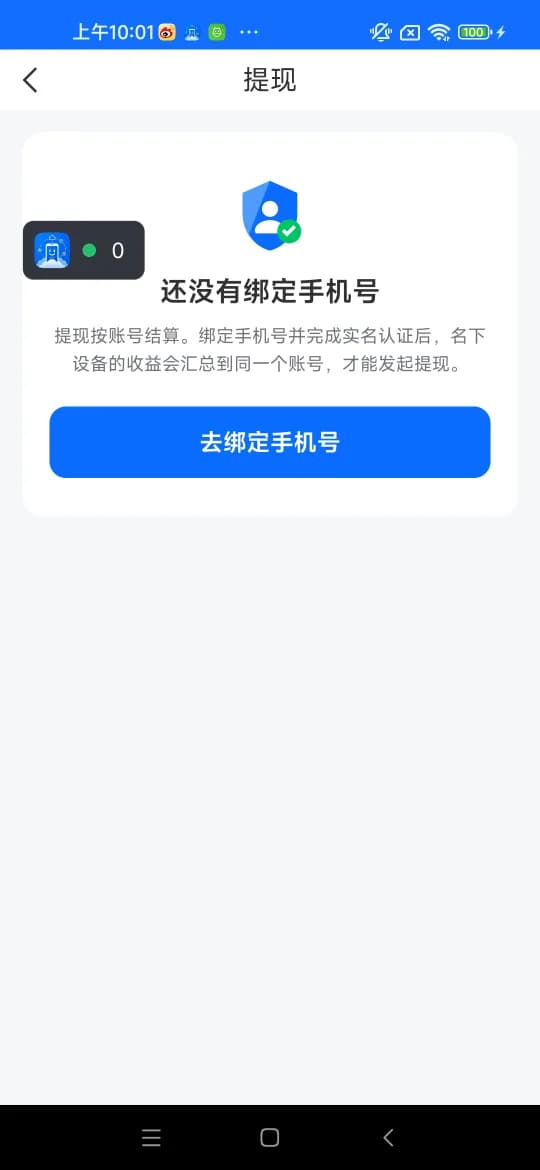
The Withdraw entry on the overview stays in guidance mode until a phone number is bound and identity verification is complete.
Once both are done, the same entry shows the withdrawable balance and lets you submit a withdrawal; progress is visible in the web console.
Match what you see in the app against this table.
| Symptom | Cause | Fix |
|---|---|---|
| Start does nothing / red "N items left" at the bottom | Readiness checklist not complete | Tap it and work through each item until the banner reads "all settings complete". |
| Node goes offline shortly after starting, or daily uptime is very short | The system's power policy killed the app in the background | Turn off battery saver, enable auto-start and add the app to the battery optimization allowlist; follow the per-brand paths in section 3. |
| Current connections stay at 0 | Ramp-up period for a new device, or the exit network fails admission | Stay online for 1–3 days. If it never moves, make sure the device isn't behind a datacenter or corporate line — home broadband or mobile data is scheduled far more readily. |
| Works on Wi-Fi, stops on mobile data | "Allow mobile data" is off | Enable it on the settings page, mindful of data charges. |
| Withdraw page says no phone number is bound | Earnings settle per account and the device isn't bound | Complete phone login and identity verification on the settings page first. |
| No floating status window | Overlay permission not granted | Tap Enable next to Overlay permission and allow it in system settings. |
The web console shows every device under your account, earnings detail and withdrawal progress.